
How to visualize a Cloud Function in a UI Component
Build a UI Component that calls your Cloud Function and renders its response.
Take a look at UI Components if you are new to this topic.
This guide is a direct follow up of the Cloud Function you built in How to create a Cloud Function. To visualize the result, you will build a custom UI Component.
In this example, you will create an interactive way to perform CRUD actions on your notes.
1. Set up the UI Component workspace
Open a terminal window and use the command below to download the UI Component workspace:
npx degit ixoncloud/component-workspace logbook
Alternatively, you can download the workspace as a .zip file from here.
1.1. Install the dependencies
Open the workspace in your editor, open a terminal window and run the command below to install dependencies:
npm install1.2. Generate the component
Navigate to components/ and generate a new component, picking a template and a variant when prompted (this guide uses Svelte with JavaScript + CSS):
npx cdk generate logbook1.3. Logging into the IXON Portal via terminal
To simulate with real data, make sure to login to the IXON Portal. Doing so will ask for your IXON Portal account login credentials, and will automatically create an .accesstoken file containing a bearer token. This is also needed for further deployment and publishing of both UI Components and Cloud Functions.
Use this command to log in:
npx cdk login2. Build the UI
Open components/logbook/logbook.svelte and replace its contents with:
<script>
  import { onMount } from 'svelte';

  let { context } = $props();

  let client;
  let notes = $state([]);
  let newNote = $state('');
  let loading = $state(false);
  let saving = $state(false);
  let error = $state('');

  // Edit / delete state
  let editingId = $state(null);
  let editText = $state('');
  let savingEdit = $state(false);
  let confirmingDeleteId = $state(null);
  let deletingId = $state(null);

  onMount(async () => {
    try {
      client = context.createBackendComponentClient();
    } catch (e) {
      error = 'Could not create backend client. Check the simulator\'s Cloud Function setting.';
      return;
    }
    await loadNotes();
  });

  function noteId(note) {
    return note?._id?.$oid ?? null;
  }

  async function loadNotes() {
    if (!client) return;
    loading = true;
    error = '';
    try {
      const response = await client.call(`functions.logbook.get_notes`, {});
      notes = response?.data ?? response ?? [];
    } catch (e) {
      error = e?.message ?? 'Failed to load notes.';
    } finally {
      loading = false;
    }
  }

  async function addNote() {
    if (!client) return;
    const text = newNote.trim();
    if (!text) return;
    saving = true;
    error = '';
    try {
      const response = await client.call(`functions.logbook.add_note`, { text });
      const result = response?.data ?? response;
      if (result?.success) {
        newNote = '';
        await loadNotes();
      } else {
        error = result?.error ?? 'Could not save the note.';
      }
    } catch (e) {
      error = e?.message ?? 'Failed to save note.';
    } finally {
      saving = false;
    }
  }

  function startEdit(note) {
    editingId = noteId(note);
    editText = note.text;
    confirmingDeleteId = null;
  }

  function cancelEdit() {
    editingId = null;
    editText = '';
  }

  async function saveEdit() {
    if (!client || !editingId) return;
    const text = editText.trim();
    if (!text) return;
    savingEdit = true;
    error = '';
    try {
      const response = await client.call(`functions.logbook.update_note`, {
        note_id: editingId,
        text,
      });
      const result = response?.data ?? response;
      if (result?.success) {
        cancelEdit();
        await loadNotes();
      } else {
        error = result?.error ?? 'Could not update the note.';
      }
    } catch (e) {
      error = e?.message ?? 'Failed to update note.';
    } finally {
      savingEdit = false;
    }
  }

  function onEditKeydown(e) {
    if (e.key === 'Enter') { e.preventDefault(); saveEdit(); }
    if (e.key === 'Escape') { e.preventDefault(); cancelEdit(); }
  }

  async function deleteNote(note) {
    const id = noteId(note);
    if (!client || !id) return;
    // First click arms the confirmation, second click deletes.
    if (confirmingDeleteId !== id) {
      confirmingDeleteId = id;
      return;
    }
    deletingId = id;
    error = '';
    try {
      const response = await client.call(`functions.logbook.delete_note`, { note_id: id });
      const result = response?.data ?? response;
      if (result?.success) {
        await loadNotes();
      } else {
        error = result?.error ?? 'Could not delete the note.';
      }
    } catch (e) {
      error = e?.message ?? 'Failed to delete note.';
    } finally {
      deletingId = null;
      confirmingDeleteId = null;
    }
  }

  function formatTimestamp(ts) {
    if (!ts) return '';
    const d = new Date(ts);
    return isNaN(d.getTime()) ? ts : d.toLocaleString();
  }
</script>

<main class="logbook">
  <h3>Maintenance logbook</h3>

  <form class="add-form" onsubmit={(e) => { e.preventDefault(); addNote(); }}>
    <input
      type="text"
      placeholder="Write a note…"
      bind:value={newNote}
      disabled={saving}
    />
    <button type="submit" disabled={saving || !newNote.trim()}>
      {saving ? 'Saving…' : 'Add note'}
    </button>
  </form>

  {#if error}
    <p class="error">{error}</p>
  {/if}

  {#if loading}
    <p class="muted">Loading notes…</p>
  {:else if notes.length === 0}
    <p class="muted">No notes yet.</p>
  {:else}
    <ul class="notes">
      {#each notes as note (noteId(note) ?? note.timestamp)}
        <li class="note">
          {#if editingId === noteId(note)}
            <div class="edit-form">
              <input
                type="text"
                bind:value={editText}
                onkeydown={onEditKeydown}
                disabled={savingEdit}
              />
              <button onclick={saveEdit} disabled={savingEdit || !editText.trim()}>
                {savingEdit ? 'Saving…' : 'Save'}
              </button>
              <button class="secondary" onclick={cancelEdit} disabled={savingEdit}>
                Cancel
              </button>
            </div>
          {:else}
            <p class="note-text">{note.text}</p>
            <p class="note-meta">
              <span class="author">{note.author}</span>
              <span class="time">{formatTimestamp(note.timestamp)}</span>
              {#if note.edited_at}
                <span class="edited" title={`Edited by ${note.edited_by ?? '?'} at ${formatTimestamp(note.edited_at)}`}>
                  (edited)
                </span>
              {/if}
              <span class="actions">
                <button class="link" onclick={() => startEdit(note)}>Edit</button>
                <button
                  class="link danger"
                  onclick={() => deleteNote(note)}
                  disabled={deletingId === noteId(note)}
                >
                  {#if deletingId === noteId(note)}Deleting…{:else if confirmingDeleteId === noteId(note)}Confirm?{:else}Delete{/if}
                </button>
              </span>
            </p>
          {/if}
        </li>
      {/each}
    </ul>
  {/if}
</main>

<style>
  .logbook {
    font-family: system-ui, sans-serif;
    padding: 12px;
    box-sizing: border-box;
    height: 100%;
    overflow: auto;
  }
  h3 {
    margin: 0 0 12px;
  }
  .add-form,
  .edit-form {
    display: flex;
    gap: 8px;
    margin-bottom: 12px;
  }
  .edit-form {
    margin-bottom: 0;
  }
  .add-form input,
  .edit-form input {
    flex: 1;
    padding: 6px 8px;
    border: 1px solid #ccc;
    border-radius: 4px;
  }
  .add-form button,
  .edit-form button {
    padding: 6px 12px;
    border: none;
    border-radius: 4px;
    background: #0067b1;
    color: #fff;
    cursor: pointer;
  }
  .add-form button:disabled,
  .edit-form button:disabled {
    opacity: 0.5;
    cursor: default;
  }
  .edit-form .secondary {
    background: #888;
  }
  .notes {
    list-style: none;
    margin: 0;
    padding: 0;
  }
  .note {
    padding: 8px 0;
    border-bottom: 1px solid #eee;
  }
  .note-text {
    margin: 0 0 4px;
  }
  .note-meta {
    margin: 0;
    display: flex;
    gap: 8px;
    align-items: baseline;
    font-size: 0.8em;
    color: #666;
  }
  .author {
    font-weight: 600;
  }
  .edited {
    font-style: italic;
    color: #999;
  }
  .actions {
    margin-left: auto;
    display: flex;
    gap: 8px;
  }
  button.link {
    background: none;
    border: none;
    padding: 0;
    color: #0067b1;
    cursor: pointer;
    font-size: inherit;
  }
  button.link.danger {
    color: #c0392b;
  }
  button.link:disabled {
    opacity: 0.5;
    cursor: default;
  }
  .muted {
    color: #888;
  }
  .error {
    color: #c0392b;
  }
</style>
Two things to notice:
context.createBackendComponentClient()builds a client wired to your Cloud Function — no manual auth setup needed.client.call('functions.logbook.get_notes', {})andclient.call('functions.logbook.add_note', { text: noteText })invoke your functions by their dotted path, with named arguments matching the function's parameters. Remember to always include the defaultfunctionsfolder.
3. Run the simulator
You'll need two terminals for this — one for the Cloud Function, one for the UI Component.
Terminal 1 — Start the Cloud Function
In the Cloud Function's workspace root:
make runYou should see the Ingress start, the same as in the previous guide.
Terminal 2 — Start the UI simulator
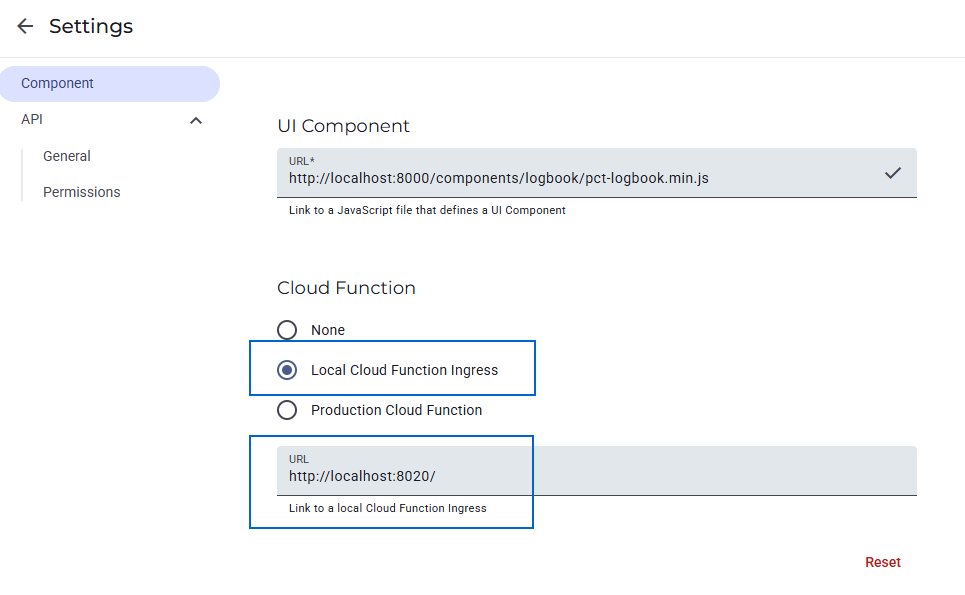
npx cdk simulate logbookWhen the simulator opens, go to Settings > Component and confirm that Local Cloud Function Ingress is selected. Without this, the simulator won't know to call your local Ingress.
4. Test your project
Do not store important information in a simulated component!In this testing stage, the Document Store will keep your notes stored in its instance as long as the Cloud Function's workspace runs. Once either the project window or the terminal window are closed, the data will be erased.
Make sure to only use non-essential mock data for testing.
On the Simulator's interface, click on the Preview — this action is needed to make your UI Component interactable.
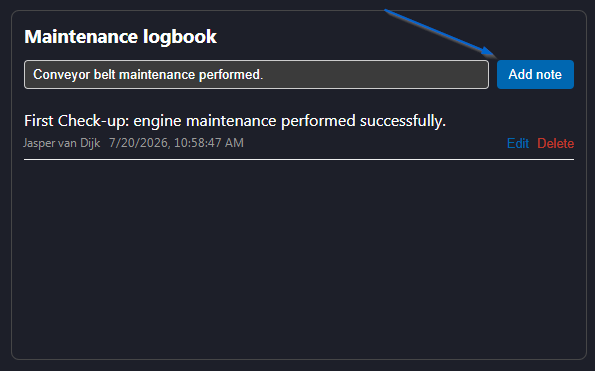
Type a maintenance note in the input field and click Add note. The component calls add_note, then immediately calls get_notes and renders the updated list:
Updated 3 months ago