
How to test using the IXON CDK Ingress
This article will guide you through the basic steps needed to start and run a Cloud Function, and also to test it via the IXON CDK Ingress.
This page provides basic information and knowledge about Cloud Functions by showing how to run the sample Cloud Function found in the SDK and how to test it in isolation via the IXON CDK Ingress.
Having completed Preparing your development environment and a basic understanding of Python are assumed.
Initial set up
We’ll start by setting up a development environment for your new project. Follow the steps found in How to create a Cloud Function, as the process is the same.
After completing all the steps, the Ingress will be available on http://127.0.0.1:8020/ and will look like this:
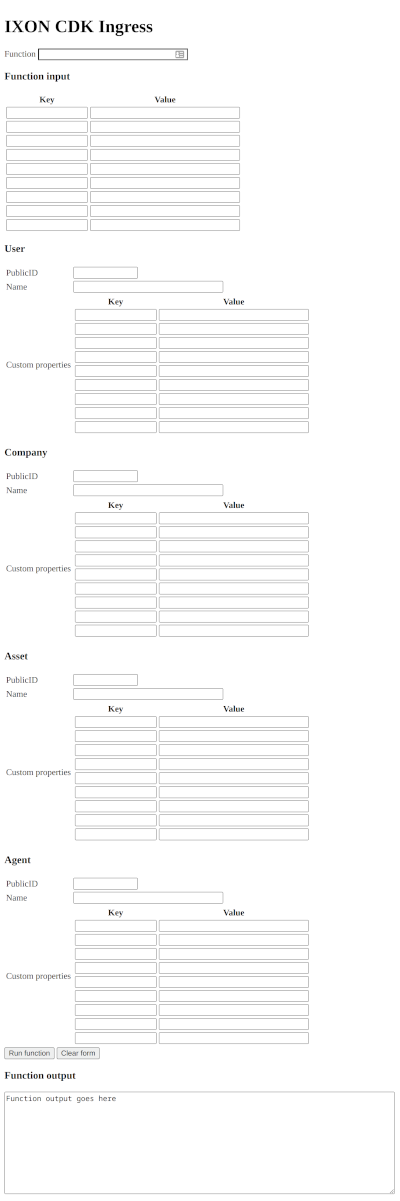
How to run a function using the Ingress
Let’s test out a function that lets us greet either a person or someone else specifically, if we want.
With ixoncdkingress v0.0.21, it is now possible to use the context_values.yaml file to set up fields that we will be able to access directly from the FunctionContext.
NoteDo keep in mind that this file is only useful for storing sensitive data during local development, and not when a Cloud Function is running on the IXON Portal. For more information about this, please check the Configuration article.
Follow these steps to test the workspace's basic Cloud Function:
- In the
context_values.yaml, change the values ofusernameandpassword, which are underserviceAccount. - In the
functionsdirectory, you will find a file calledexample.py. Open it in your editor. - This is what you will see:
from ixoncdkingress.function.context import FunctionContext

@FunctionContext.expose
def greet(context: FunctionContext, name: str = 'person'):
    """
    A simple example function that greets someone.
    """
return f'Greetings {name}, my username is {context.config["serviceAccount"]["username"]}!'-
Restart the test environment by running
make runagain. -
Go back to the IXON CDK Ingress page.
-
Python calls its functions based on the file path, file name and function name, in this exact order and separated by a full stop
.: based on this, enterfunctions.example.greetin theFunctionfield and click theRun functionbutton, located beforeFunction output.Enter
functions.example.greetin theFunctionsfield and clickRun function.
You should see the following result, with User 1 replaced by the value you assigned to username in the context_values.yaml. The value person is the default one assigned as a parameter to {name} by default in the code:
"Greetings person, my username is User 1!"Change the function
Now let’s try to greet someone else.
-
In the first row of the table below
Function inputenternameunderKeyandDeveloperunderValue: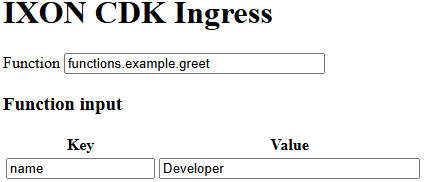
-
Run the function again and take a look at the output:
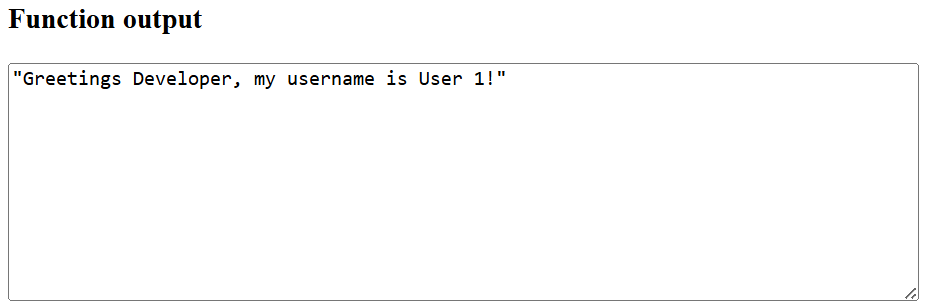
It now says Greetings Developer! instead! We now have all the basic ingredients for a Cloud Function.
Things to try out from here
Try saying Hello to others. See what happens if you change the Key to a different value, and how you can make the Cloud Function work with that other value.
Updated 3 months ago