
How to register, deploy and publish a Cloud Function
How to take your Cloud Function to production in your company.
After developing your Cloud Function, the last steps will consist of registering the Cloud Function to the IXON Cloud, then deploying it and publishing it.
The information regarding deployment and publishing are also available in the Deployment to IXON Cloud section of the IXON Cloud Functions SDK.
Registering the function in IXON Cloud
Before you can deploy, you need to register the function in IXON Cloud.
- Open Studio > Cloud Functions.
- Click Add new Cloud Function.
- Enter the name of your Cloud Function, then click Add. We recommend using a name that end-users will recognize.
- Copy the Public ID that's displayed — you'll need it for deploying and publishing the function.
Deploy and publish
To deploy and publish your local code as a new version of the registered function, the workspace needs two files.
The .env file
.env fileFound in the workspace root. the .env file should contain two fields:
IXON_API_COMPANY_ID— your company's Public ID. You can find it in the URL of the IXON Portal when your company is open.IXON_API_TEMPLATE_ID— the Public ID of the Cloud Function you just registered.
An example of .env file:
IXON_API_COMPANY_ID=your-company-public-id
IXON_API_TEMPLATE_ID=your-function-public-id
The .accesstoken file
.accesstoken fileThe .accesstoken file should also exists in the workspace root. In this scenario, you can obtain an access token by using F12 and looking for the Authorization header of an API call with the network inspector while browsing the IXON Portal. After that, copy it in the .accesstoken file.
Then deploy following the steps in the workspace's deployment section of the IXON SDK workspace.
Notes
.envand.accesstokenshould not be checked into version control. The.gitignorefile in the workspace already includes these files and more, but it is always worth double-checking it before deploying.- The user account used for deploying must have the Develop apps permission.
- The bearer token can also be automatically generated when logging in from a UI Component's workspace: You can do that and copy the bearer token in the
.accesstokenfile and then paste it in thebackend-component-workspaceroot folder.
Finally, deploy and publish your function with the following command:
make deployOnce published, the function becomes available under Admin > Apps for anyone in your company to enable.
How to upload a new Cloud Function's version
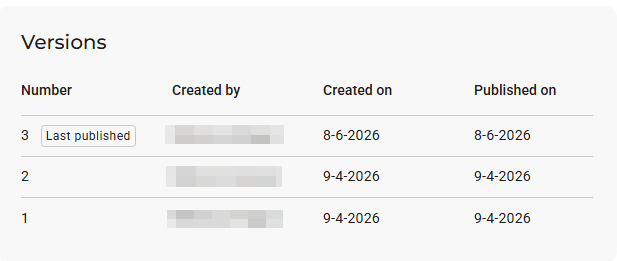
If your function has been updated and you want to publish a new version, running make deploy will automatically deploy and publish a new version. The newly published version will be visible from Studio > Cloud Functions > [Cloud Function Name] > Versions.
Note: It may take a minute or two for the "Last published" flag and the date under "Published on" to appear next to the new version.
Updated 4 months ago